STEP 01 / INPUT
Add Server: Add a Server or Import a Subscribe Link
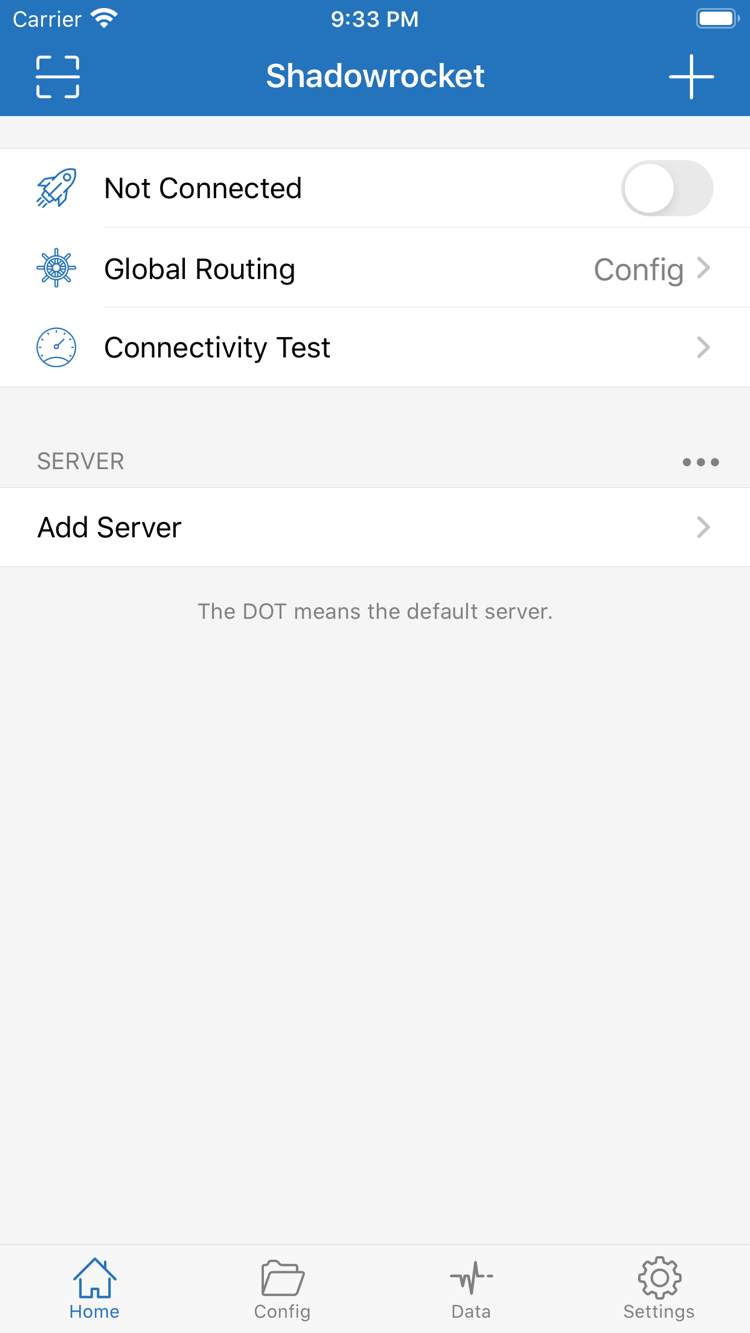
Open Shadowrocket and go to Home. Find Add Server near the SERVER section. First, identify what kind of details you have: a subscription link retrieves and maintains a list of servers, while individual server details require choosing the relevant protocol and filling in its fields. These are different input types. Don't paste a full subscription URL into Host or use a server address as a Subscribe URL.
Have a Subscription Link? Select Subscribe
- Tap Add Server, open the Type list, and select Subscribe. Paste your complete link into the subscription URL field and enter a name that's easy to recognize.
- Check that the pasted link is complete, especially the beginning, end, and query parameters. Remove any accidental spaces or line breaks. A subscription URL may contain credentials, so don't share it publicly while troubleshooting.
- After saving, return to Home and wait for the subscription to load, or use the update option provided for that subscription. Check that actual server entries appear under SERVER, not just a subscription name.
A successful subscription update means the app received data it could parse; it doesn't mean every entry can connect. Choose an entry you're authorized to use, check that its protocol and address look right, then continue. If the list is empty, check the subscription status and URL. Avoid adding the same subscription repeatedly; duplicate entries make later selection and troubleshooting harder.
Have Individual Server Details? Fill In the Fields for Its Type
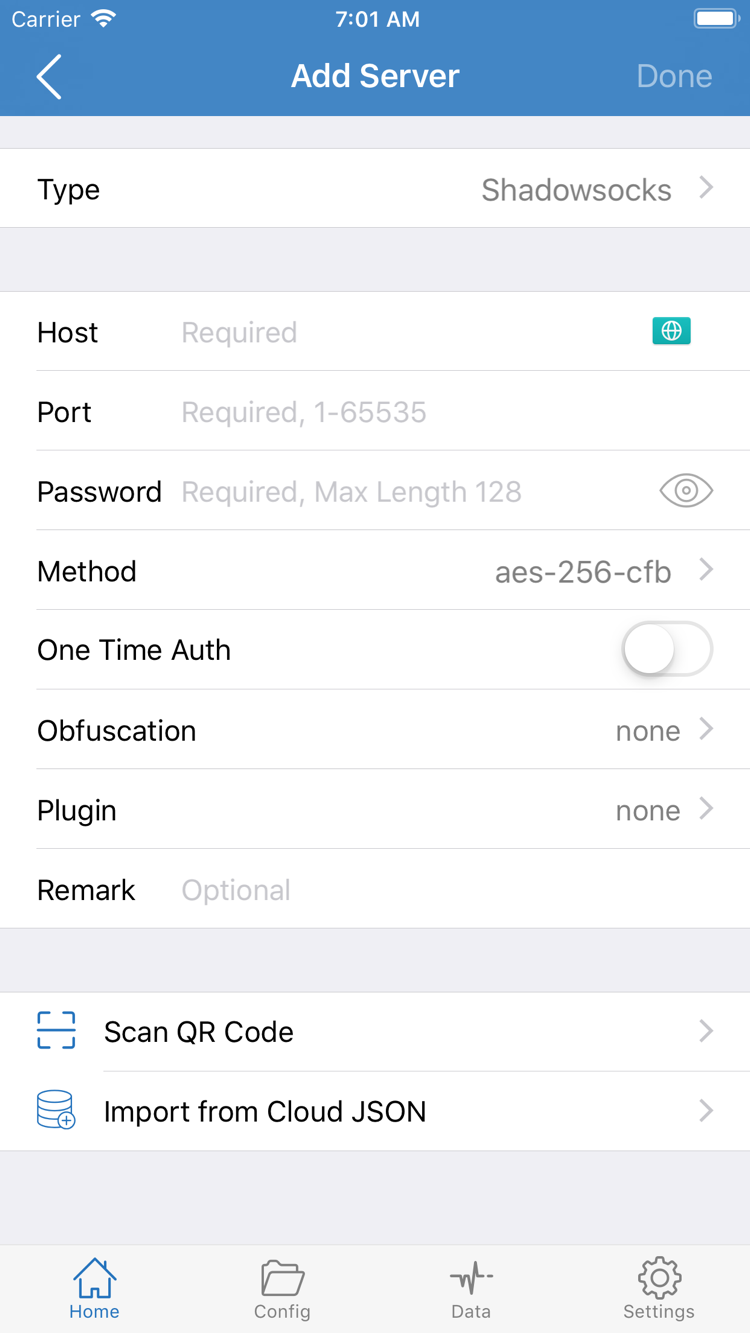
If you have a server address, port, and authentication details, choose the matching protocol under Type in Add Server. The available fields vary by protocol. Host, Port, Password, and Method shown in the screenshot are examples from the corresponding interface, not a universal list required by every protocol. Host is usually the server's domain name or IP address; enter the port in Port. Match Password, Method, and any other authentication or transport settings to the details you have.
For protocols such as VLESS, Trojan, and WireGuard, check the required identity, encryption, or Peer parameters for that protocol. Don't guess based on fields used by other protocols. If the original details include TLS, SNI, or a transport path, enter each one in the corresponding field. Check the original configuration instructions for any parameter you're unsure about instead of switching off related options at random.
Use Scan QR Code to scan a QR code for a configuration you already have. Follow the system prompts for camera access, then review the imported details. Import from Cloud JSON imports data in the corresponding format; it isn't a general-purpose subscription option. Save, return to Home, and confirm that the server entry exists and that you can reopen its details before moving on to Global Routing.