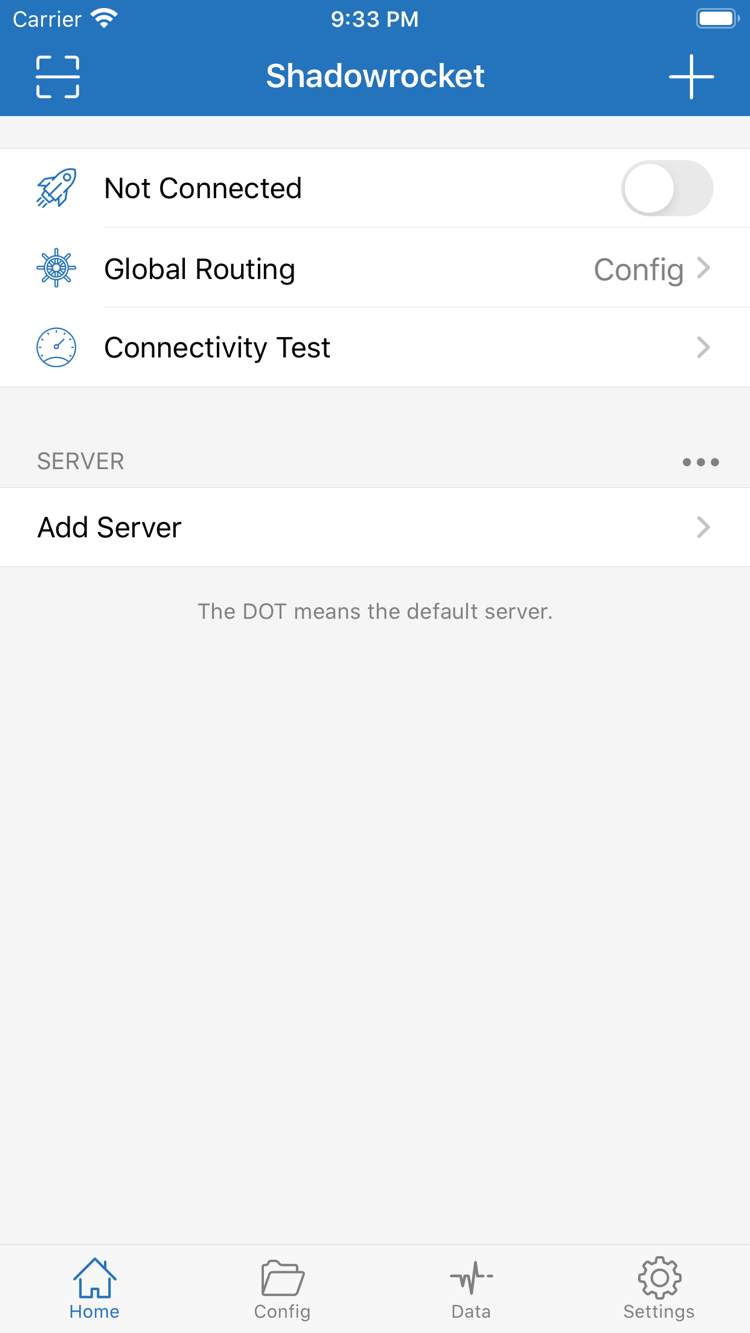
Search results do not verify an app’s identity
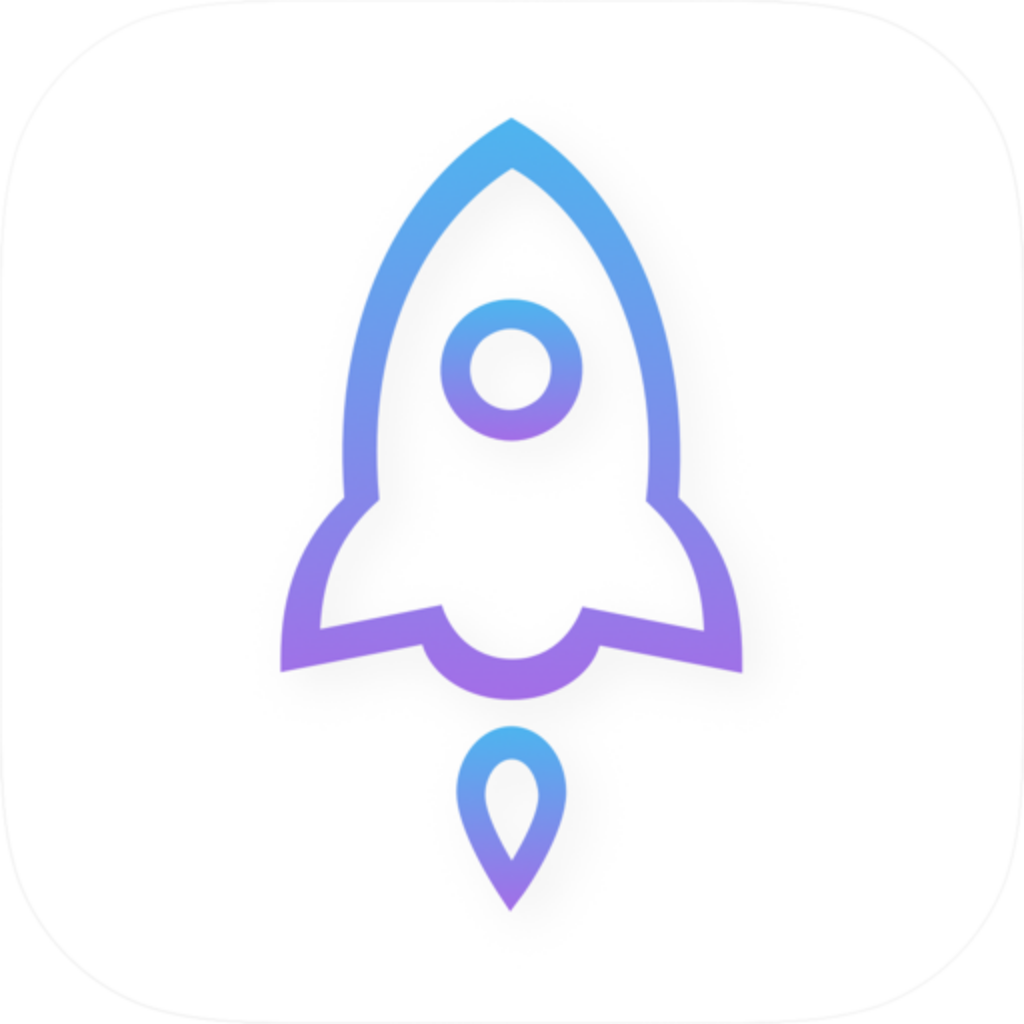
Search results may include apps with similar names or icons. Open the product details and check that the developer is Shadow Launch Technology Limited, then compare the official icon shown here and the app ID on the product page. The icon can help you recognize the app, but it is not enough on its own; the developer and app ID are two other essential checks. Once all three match, review the price, compatibility, and purchase information.
Even when opening the app from your purchase history, it is worth confirming its name and identity, especially if your account includes similarly named apps. Store language, search ranking, and page layout may change, but the three identity checks remain the same. This guide explains what to check; button locations depend on the current App Store interface.
Store region and account status
Whether the product appears in your store depends on the account’s store region and product availability. If the product page will not open or the app does not appear in search, first check the purchasing account and store status instead of repeatedly reinstalling the app. Prices are shown in each store’s local currency. The US storefront price mentioned here illustrates the billing model only; use the amount displayed on your device before purchasing.
For account region changes, payment methods, or purchase restrictions, follow the current App Store prompts. Being able to open a web page does not prove that the account can make a purchase. Do not assume the iCloud account signed in on a device is the same as its App Store purchasing account. To restore a purchase, check the account that actually made it.